Access 301: Ephemeral Authentication > Class - Access 301: Ephemeral Authentication > Module 1 - Implement C3D with APM Enhancements Source |
Lab 1.8 - Implement Dynamic Certificate Injection
In this section, we will use the HTTP Connector to retrieve a user’s certificate from Active Directory and use it in the BIG-IP Certificate minting process.
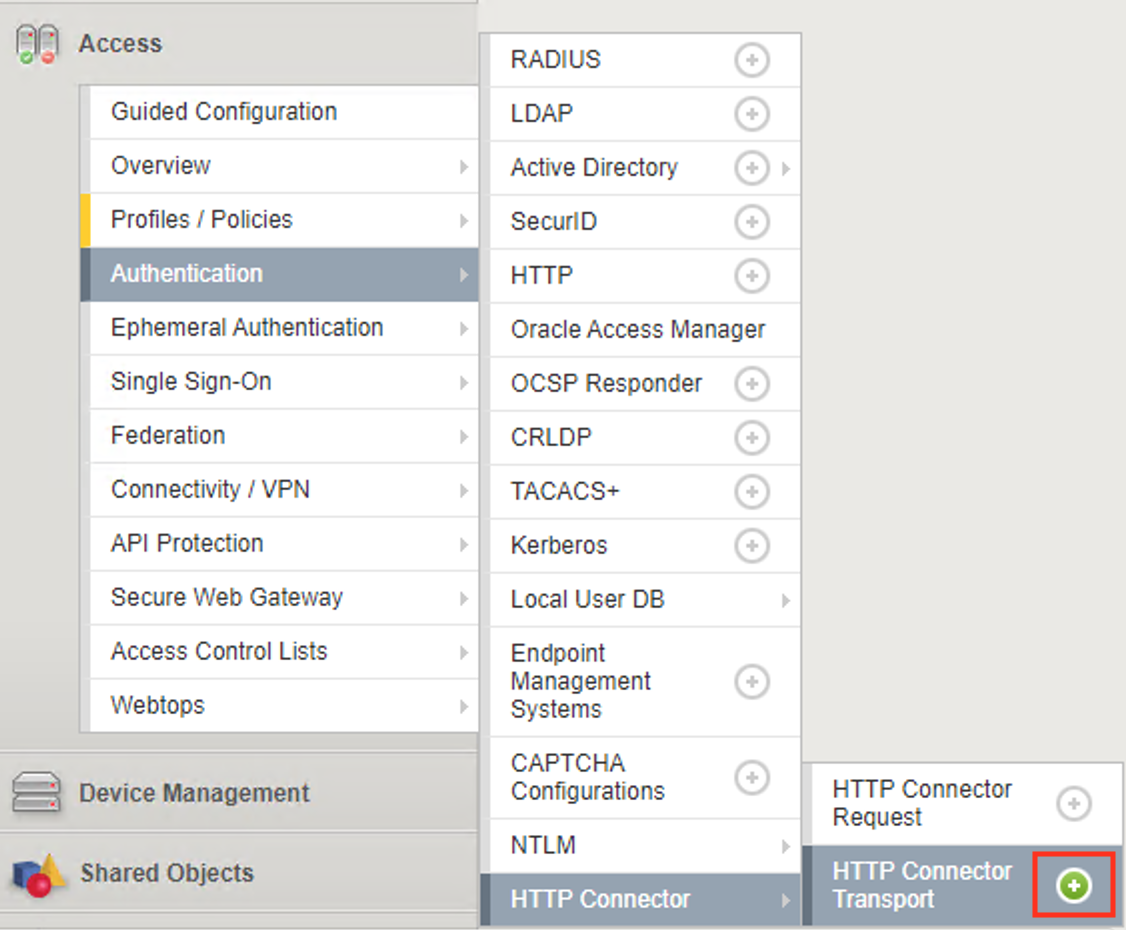
Task - Create an HTTP Connector Transport
Navigate to Access >> Authentication >> HTTP Connector >> HTTP Connector Transport and click the + (plus symbol)
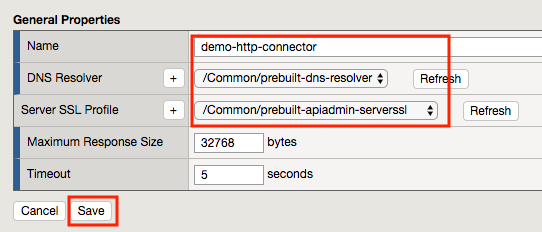
Enter Name demo-http-connector
Select prebuilt-dns-resolver from the DNS Resolver dropdown
Select prebuilt-adpiadmin-serverssl from the Server SSL Profile
Click Save
Task - Create a HTTP Connector Request
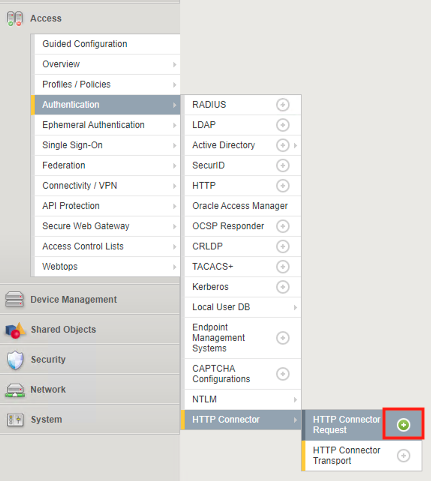
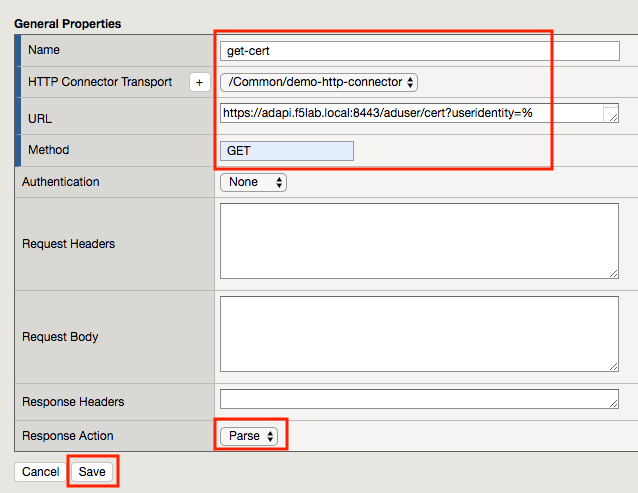
Navigate to Access >> Authentication >> HTTP Connector >> HTTP Connector Request and click the + (plus symbol)
Enter name get-cert
Select demo-http-connector from the dropdown
Enter URL https://adapi.f5lab.local:8443/aduser/cert?useridentity=%{perflow.username}
Enter GET for the Method
Select Parse for the Response Action
Click Save
Task - Create a Per-Request Policy
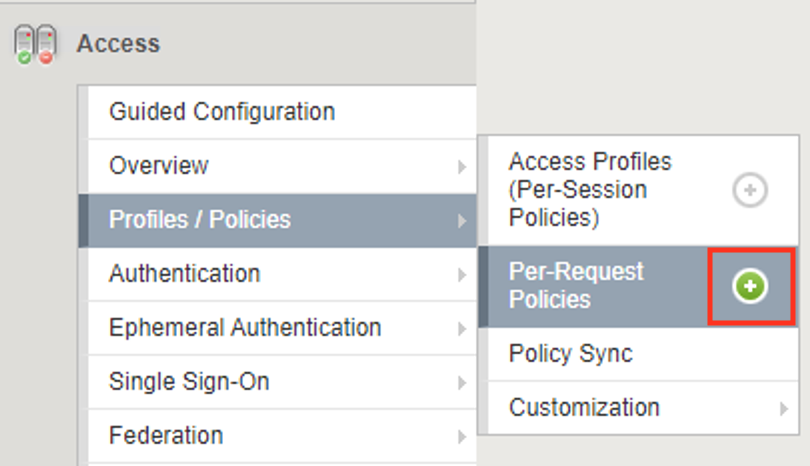
Navigate to Access >> Profiles/Policies >> Per-Request Policies and click the + (plus symbol)
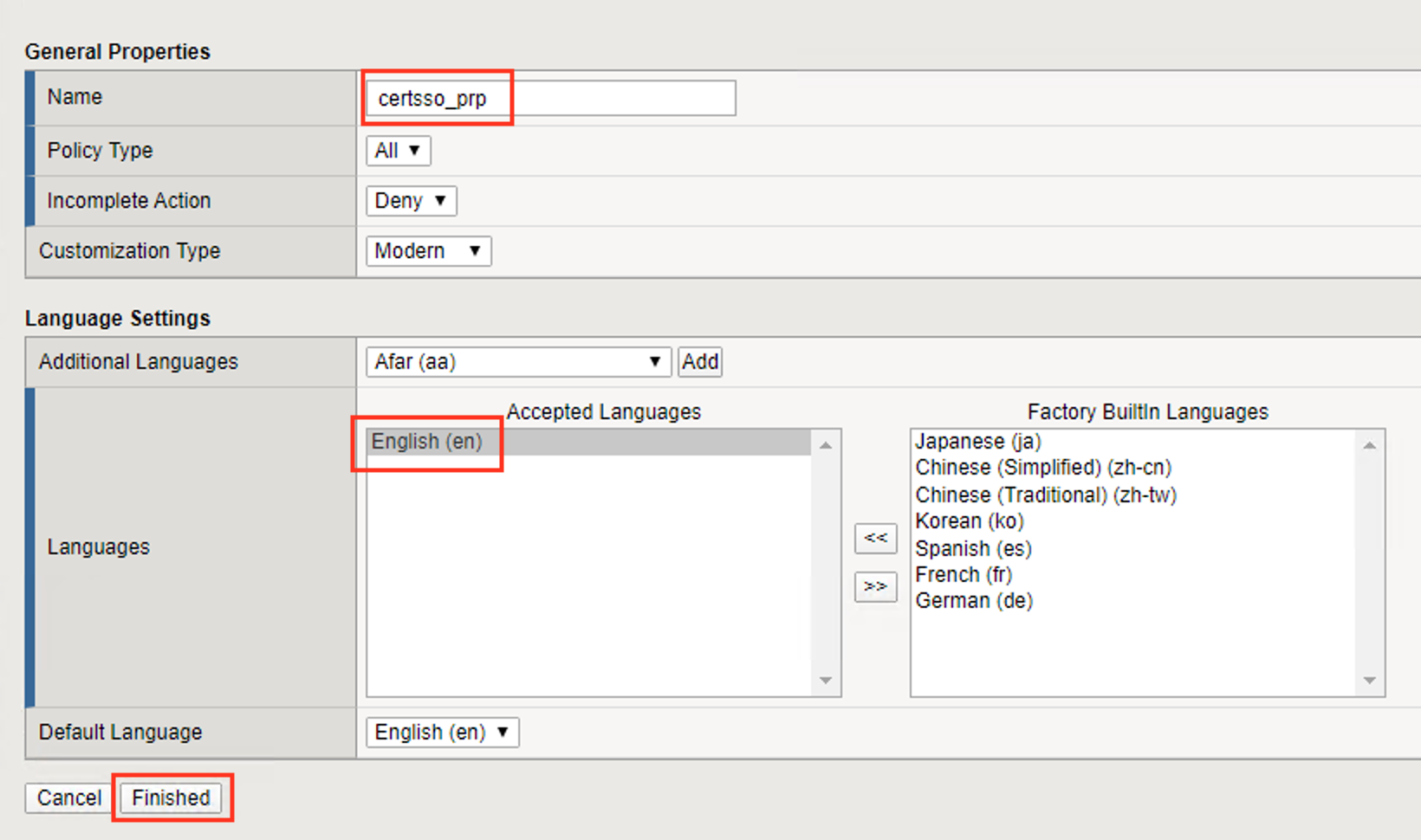
Enter the name certsso_prp
Select the Language English
Click Finished
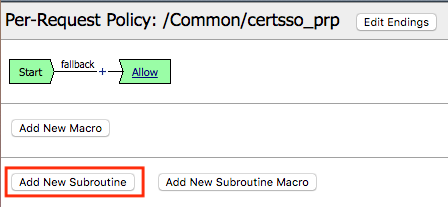
Click edit under Per-Request Policy

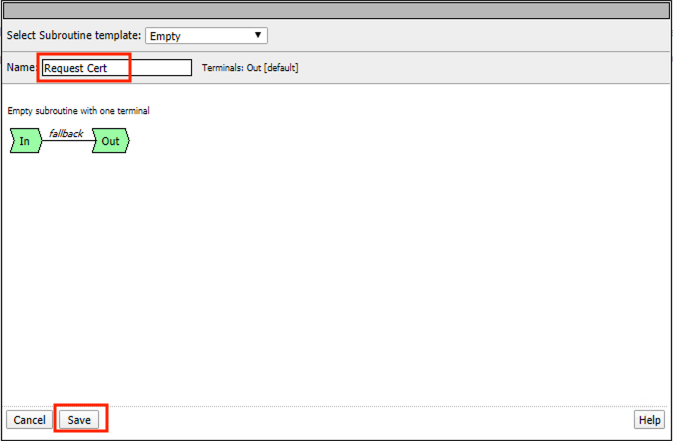
Click Add New Subroutine
Enter the name Request Cert
Click Save
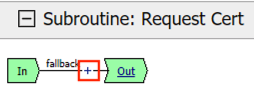
Expand the subroutine by click the + (plus symbol)

Click the + (plus symbol) on the fallback branch.
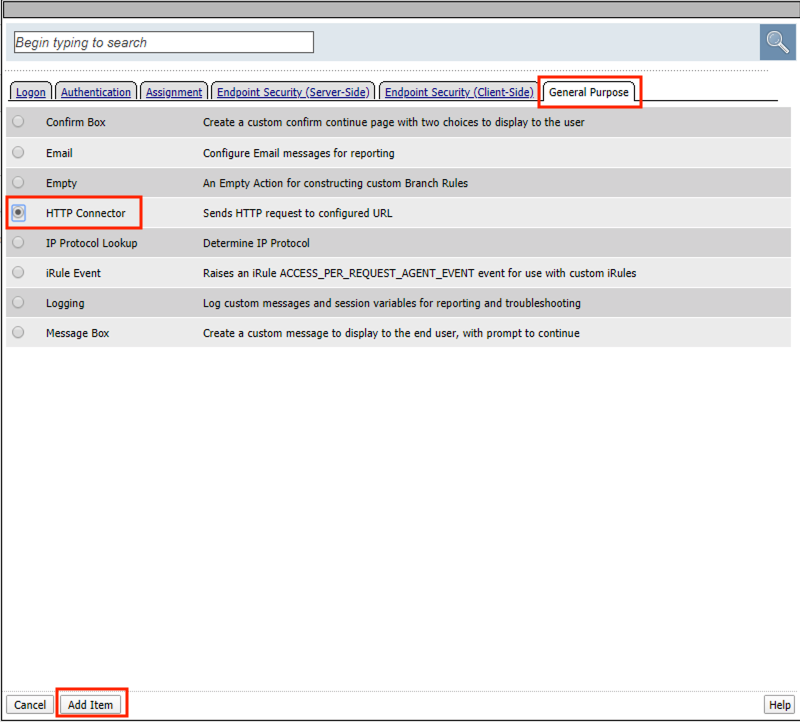
Click the General Purpose tab
Select HTTP Connector
Click Add Item
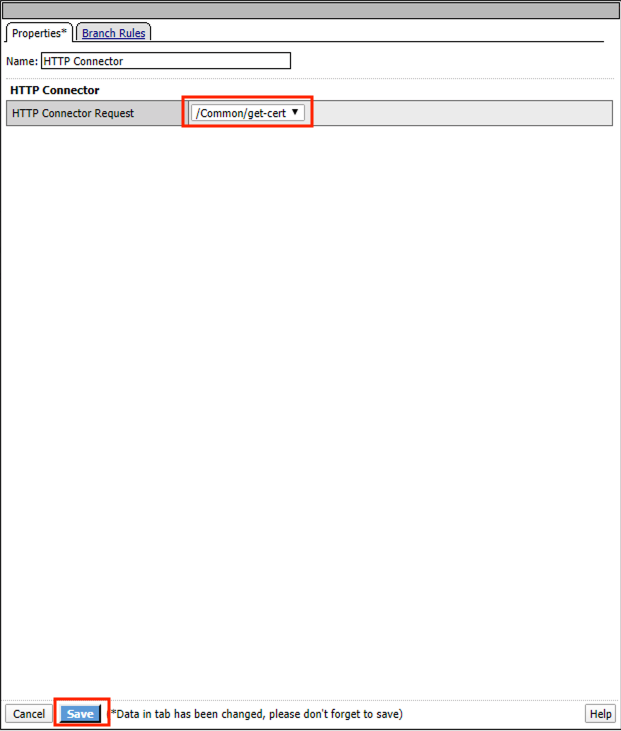
Select get-cert drop the dropdown
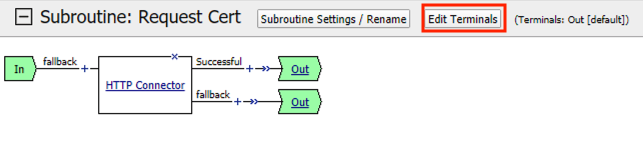
Click Edit Terminals
Click Add Terminal
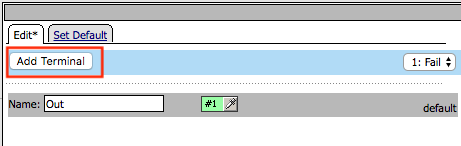
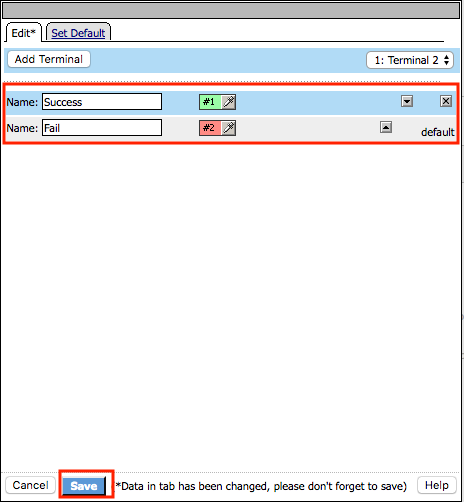
Change the name for the default branch to Fail
Change the default branch text to Red
Enter the name Success for the new branch
Change the color of the new branch to Success
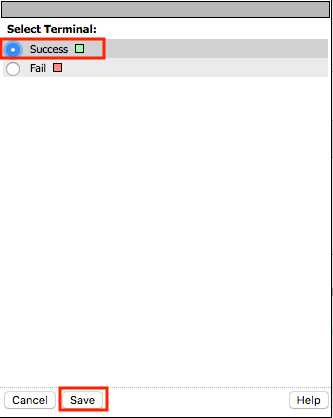
Click the Fail terminal at the end of the Successful branch
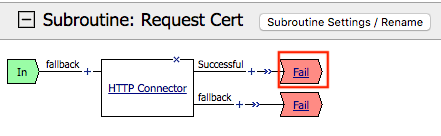
Select the Success terminal
Click Save
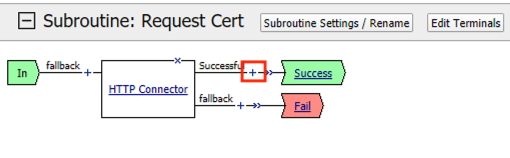
Click the + (plus symbol) on the successful branch
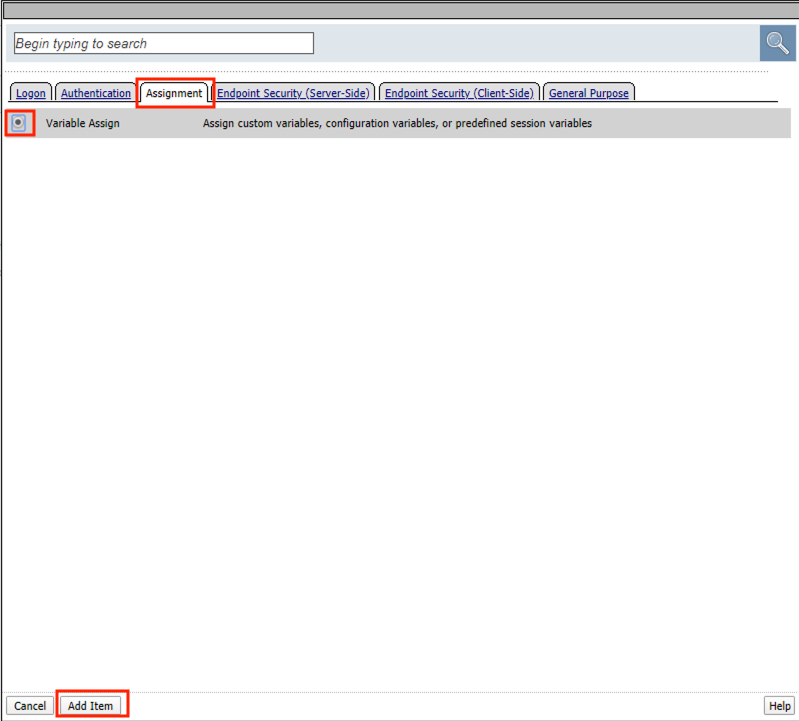
Click the Assignment tab
Select Variable Assign
Click Add Item
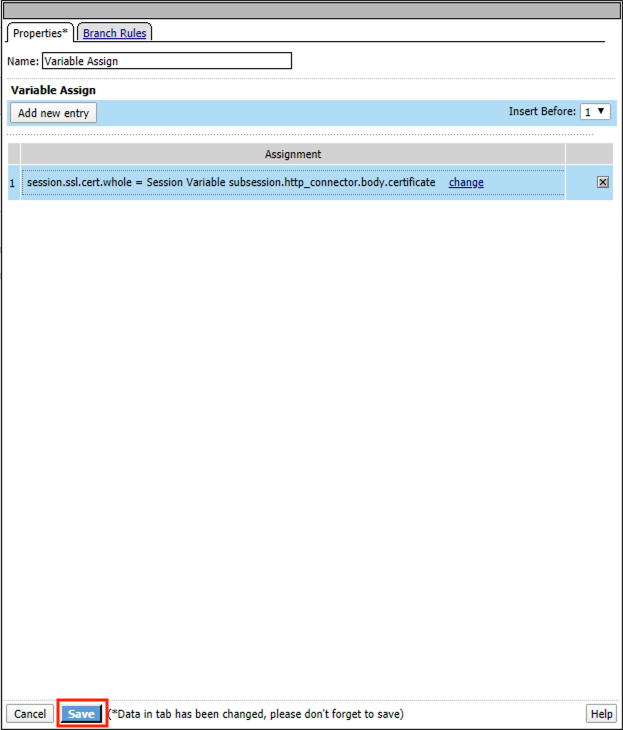
Click Add new entry
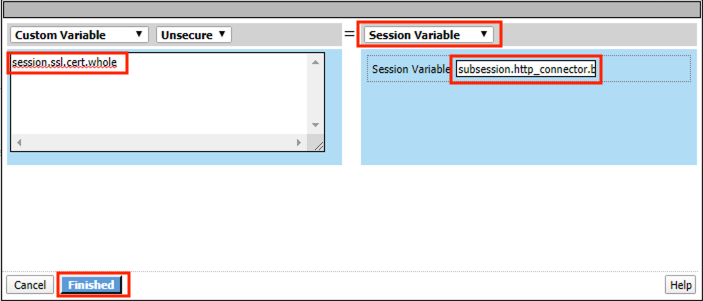
Click change
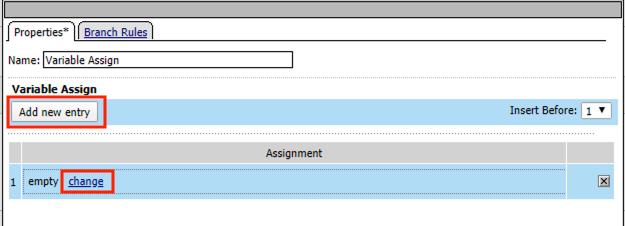
Enter session.ssl.cert.whole for the Custom Variable
Select Session Variable from the dropdown
Enter subsession.http_connector.body.certificate for the Session Variable
Click Finished
Click Save
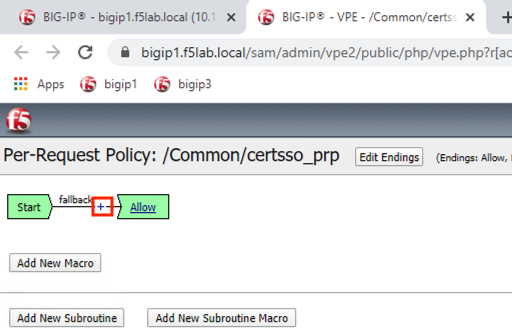
Click the + (plus symbol) located between Start and Allow in the policy
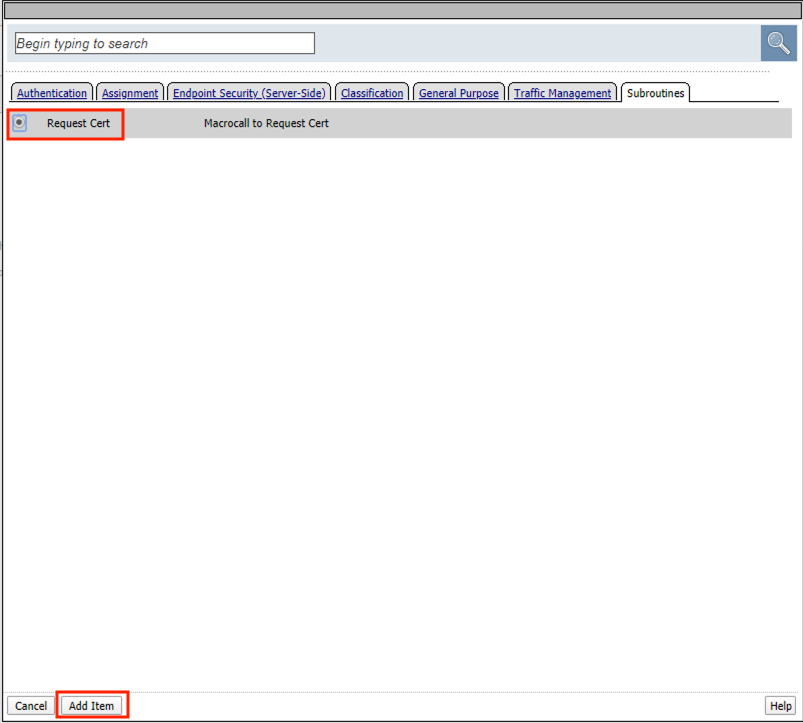
Click the Subroutines tab
Select the Request Cert subroutine
Click Add Item
Click the + (plus symbol) on the success branch of Request Cert
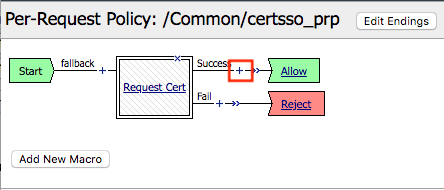
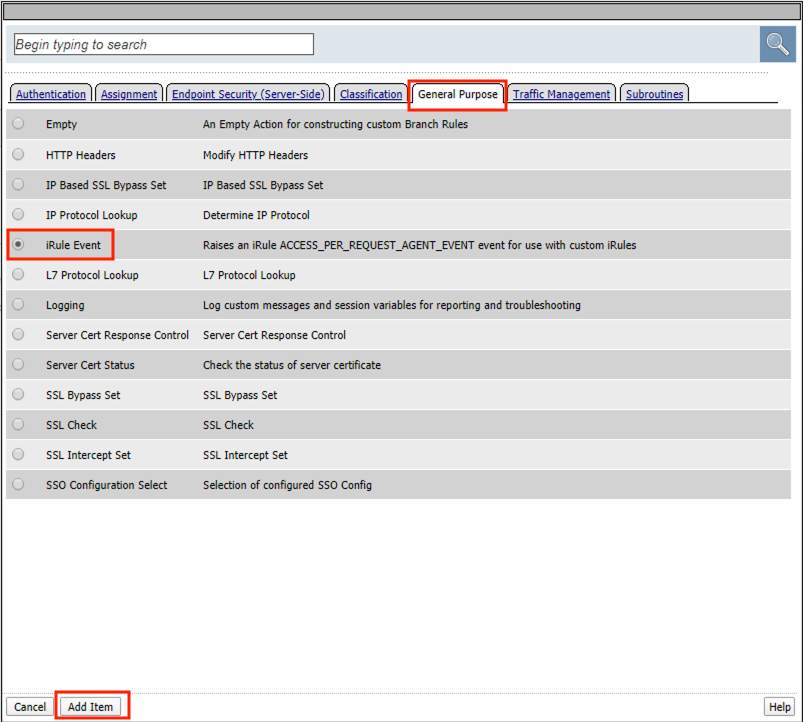
Click the General Purpose tab
Select irule Event
Click Add Item
Note
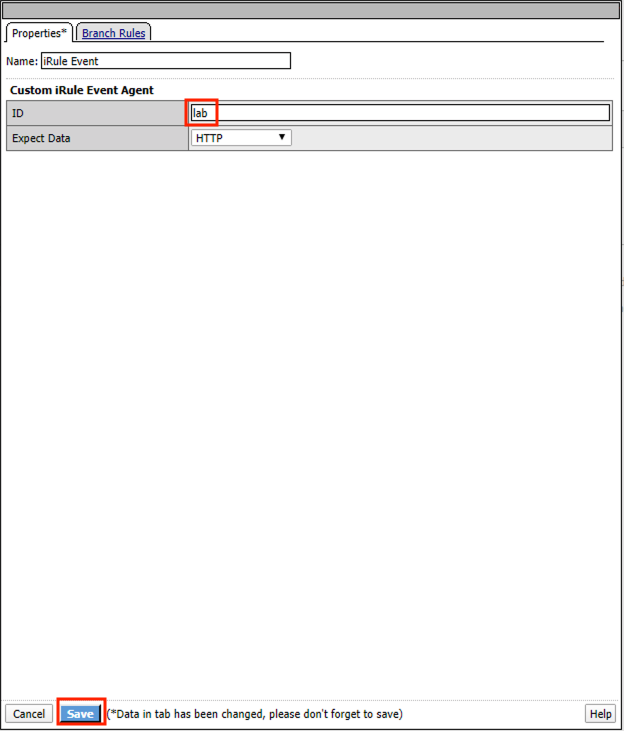
This iRule event triggers the code from the previously attached iRule. This iRule must be used when inserting a certificate using C3D in a per-request policy.
1 2 3 4 5 | when ACCESS_PER_REQUEST_AGENT_EVENT {
set cert [ACCESS::session data get {session.ssl.cert.whole}]
log local0. "My cert: $cert"
SSL::c3d cert [X509::pem2der $cert]
}
|
- Enter lab for the ID
- Click Save
Task - Attach the PRP to the mTLS Virtual Server
- Navigate to Local Traffic >> Virtual Servers. Click Virtual Server List
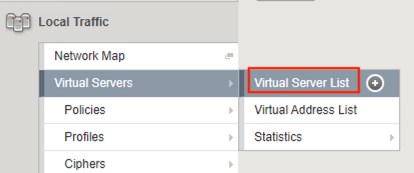
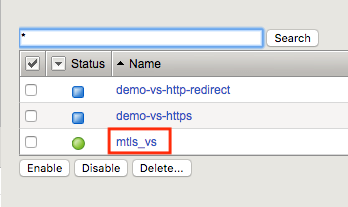
- Click mtls_vs
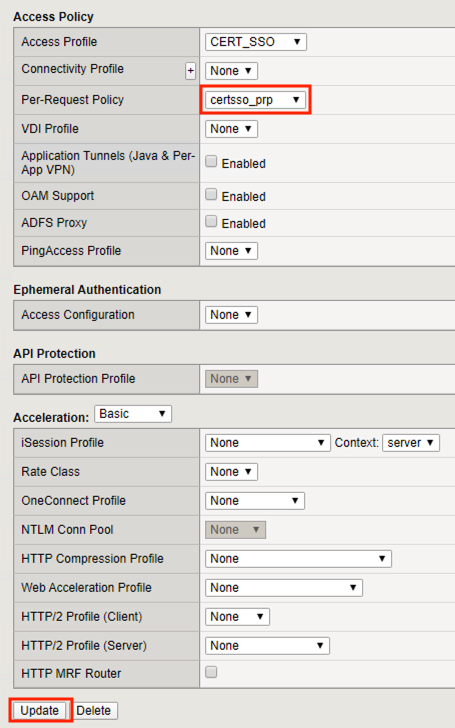
- Navigate to the Access Policy section and select certsso_prp from the Per-Request Policy dropdown
- Click Update